
What is ScanPST? A Complete Guide to Fix Corrupt Outlook PST File
Are your Outlook not opening? Or it is opening but half your folders are empty. Or you keep getting some error message every time when you try to check your mail, and closing and reopening Outlook a dozen times hasn’t helped. If you searched around and find a new tool called “ScanPST“. This tool is for you. In this article, I am going to explain what actually it is, where do you find it, what to do when it doesn’t work. At Last, I will also discuss about a free browser based online PST repair tool that will help you in case of ScanPST fails.
What is ScanPST?
ScanPST is a very small program that comes with MS Outlook. Microsoft quietly include it with every install of Outlook. Some people call it the Inbox Repair Tool, which is a bit more descriptive. lt looks at your PST file. A PST file is a data file that stores all your emails, contacts, calendar, attachments etc. ScanPST checks the internal structure of your PST file and if it finds any problems with PST then try to patch them up.
You don’t need to download and install it. It is just there, buried a few folders deep, waiting for the one day something goes wrong. Which is exactly why most people have never heard of it until now.
When to Use ScanPST?
Any time Outlook starts behaving oddly and you can’t figure out why. A few situations that usually mean it’s time to run ScanPST:
- Outlook freezes or hangs every time you try to open it.
- You get a message like “Outlook cannot open your default e-mail folders”.
- A folder you know had mail in it now shows up completely empty.
- Outlook keeps nagging you to repair the data file, repeatedly, even after you thought you’d already fixed it.
- You’re seeing an error code, something like 0x80040600 or 0x8004060C.
- Stuff is just missing. Emails, contacts, calendar entries, gone with no obvious reason.
Note: Running ScanPST doesn’t mean it will fix100% guarantee, but it is a free tool and built-in first thing worth trying before you go for searching any alternative methods or trying any paid software.
Where is the Location of ScanPST?
This is the very annoying part. It is not available in your Start Menu the way a normal app would be. It’s tucked away inside your Office program files, and the exact folder location depends upon the version of your Outlook program. Honestly, the fastest way to find it is just to hit the Start Menu and type “ScanPST” — it’ll usually pop right up in the search results and save you the trouble of hunting through folders.
If for some reason it doesn’t show up in search, here is the location to try for manual search:
- Outlook 2016, 2019, or 2021, 64-bit: C:Program FilesMicrosoft OfficerootOffice16
- Outlook 2016, 2019, or 2021, 32-bit on a 64-bit Windows machine: C:Program Files (x86)Microsoft OfficerootOffice16
- Outlook 2013: C:Program FilesMicrosoft OfficeOffice15
- Outlook 2010: C:Program FilesMicrosoft OfficeOffice14
- Microsoft 365 (the Click-to-Run version most people have now): same Office16 folder as above
Once you’ve found it, double-click to open it, hit Browse and pick your damaged PST file, click Start, and let it scan the file. If it finds errors, there’s a Repair button. Hit the Repair button to start repairing of your corrupt PST file. Sometimes, it fixes the file in just one pass but it’s pretty normal to run this 3-4 times. Keep running it before it finally comes back clean.
Attention: Do yourself a favor and check the backup box before you click that — it costs nothing and saves you if the repair strips something out you wanted to keep.
ScanPST doesn’t Work?
This happens more than you did think of. ScanPST has been built for minor corruption, not for the worst corruption cases PST file. You’ll know you’re in that territory if:
- You keep running it and it keeps finding the same errors.
- It crashes or just freezes while running.
- After the “successful” repair, your Outlook still won’t open the file.
If you are in same situation then firstly look for backup. It might be possible that you have created somewhere earlier. Restoring PST file from backup is always going to beat trying to rebuild a broken file from scratch, so it’s worth five minutes of checking before trying anything else. Secondly, if you don’t have a backup or backup is corrupt itself then make a copy of the corrupted PST before doing anything further, so a second attempt at fixing it can’t make things worse than they already are. Third, if ScanPST genuinely isn’t fixing it, that’s when try something else that us specifically built for major corruption. For this, you need to check next option.
Stellar Online PST Repair
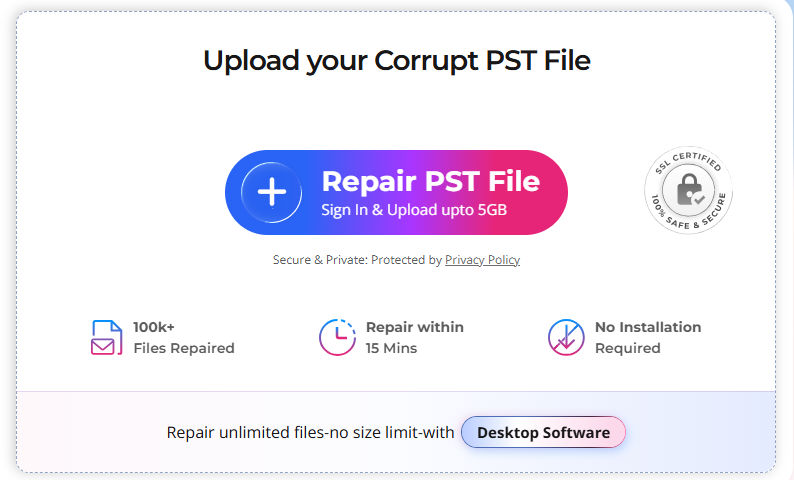
As name suggests it runs entirely in your browser. It is a completely free software that doesn’t require any download, any install, nothing to dig through in your Program Files.
You go to the Online PST Repair page, upload your broken PST file, and it handles the rest.

Click on the stat button wait a bit while it scans and repairs automatically.

After scanning, it will generate a preview of your recovered emails, contacts, and calendar before you commit to downloading anything.

Once you’re happy with what you see, you download the repaired file and you’re done.
You can run with a browser, so if you’re on a Mac, or a locked-down work laptop where you can’t install random software, this is a genuinely useful option. One catch worth knowing upfront: the free version tops out around 500 MB. If your PST file is bigger than that, you will need to pay for Stellar Repair for Outlook software.
FAQs related to ScanPST
Is it safe to run ScanPST on my file?
Yes, it is a PST repair tool provided by Microsoft tool. It gives you a chance to backup the file before touching it. Just tick that box.
Can ScanPST recover deleted emails?
No. It only fixes structural damage to the file. Anything permanently deleted before the corruption happened is gone regardless of what ScanPST does.
Is Stellar Online PST Repair tool actually free?
Yes, it is free for files under 500 MB. For large corrupt files, Stellar provides a desktop software.
Conclusion
Start with ScanPST. It costs nothing, it is already available on your computer, and it clears up most of what goes wrong with a PST file. If it fails to repair the file then Stellar’s free online PST repair tool is a best alternative. And if you take away one thing from all this: check for a backup before you do anything else. A good backup beats any repair tool, every time.
The post What is ScanPST? A Complete Guide to Fix Corrupt Outlook PST File appeared first on BNO News.
Ella Rae Greene, Editor In Chief